
 QuickLight Screenshot
Frequently asked questions
Quick answers to common questions. Can't find yours? Ask us directly.
Product overview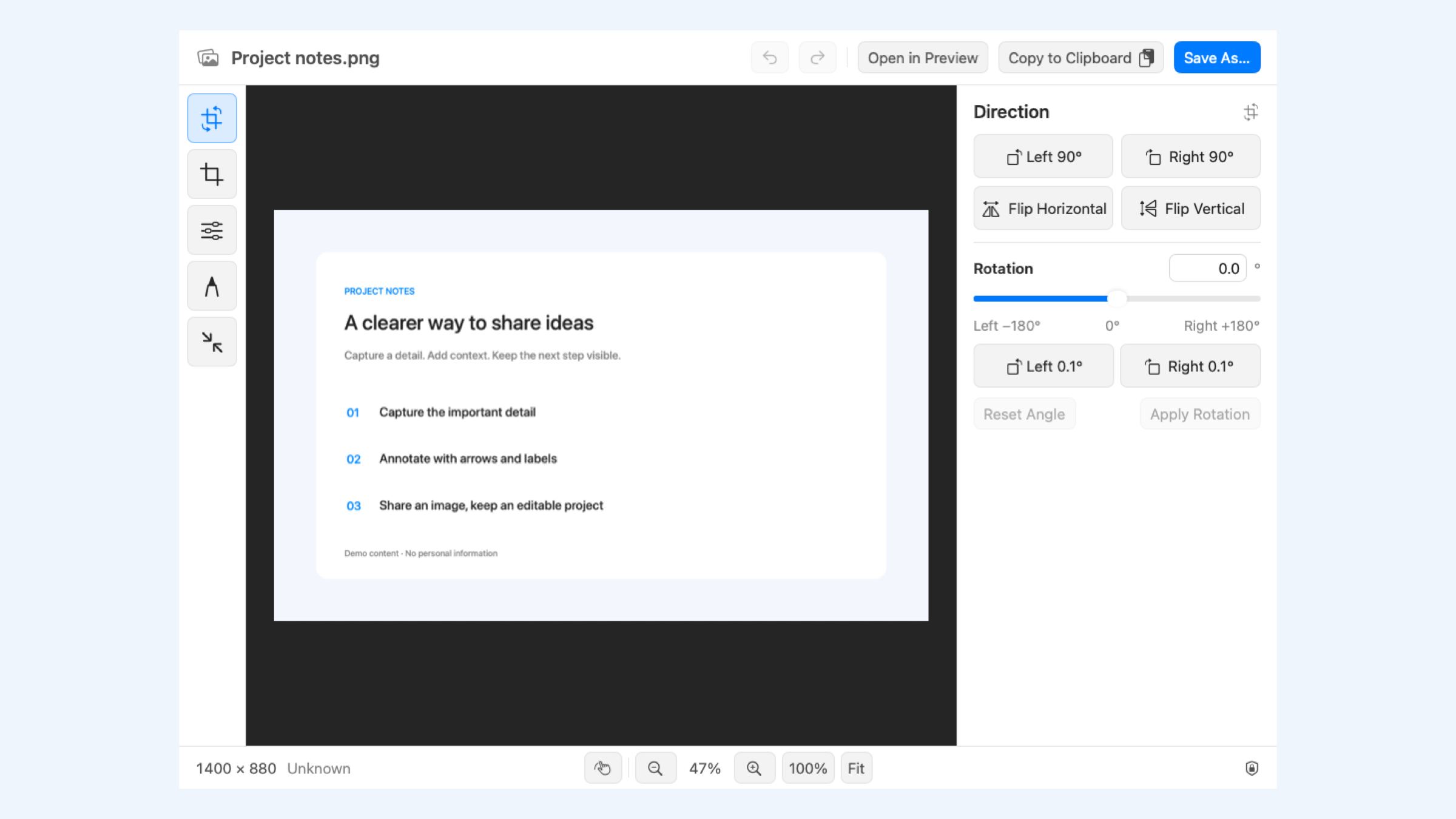
Getting started
Why is there no main window after launch?
QuickLight Screenshot primarily runs from the macOS menu bar. Click its viewfinder icon to capture, edit an image, view history or open settings. The default region shortcut is Control + Option + A; shortcuts can be changed in settings.
What macOS version and hardware are required?
QuickLight Screenshot requires macOS 14 or later. Website-edition VIP device activation additionally requires a Mac with Secure Enclave; use the app’s check to verify availability. See Downloads for available installers and distribution channels.
Why does the app request Screen Recording and Accessibility?
Screen Recording access obtains still screenshots; the app does not record microphone or system audio. Ordinary capture only needs Screen Recording. Scrolling capture also needs Accessibility access to scroll the target window. Manage or revoke these permissions in macOS Privacy & Security settings.
Why does capture still fail after granting permission?
Verify that permission is enabled for the currently installed app. After replacing a build, or if macOS requests a restart, save editing work, quit the app completely and reopen it. For window or scrolling capture, move the pointer back to the target window after granting access.
What if a capture shortcut does not respond?
Check the shortcuts settings page for registration failures or conflicts. Change combinations used by macOS or another app, or re-register shortcuts. Region capture defaults to Control + Option + A. Try the same command from the menu bar to check whether only the shortcut is affected.
Where can I download the app, and why is there no download button?
Check the Downloads page. Available installers and channels are maintained by the administrator. A Coming soon message means no public download link has been configured, not that an in-app operation failed. Avoid installers from untrusted sources.
Capture and editing
How do I copy, save or pin a screenshot?
After selection, Return copies, Command + Return saves, Option + Command + Return pins, and Shift + Command + Return opens the editor by default. Toolbar buttons provide the same routes. Shortcuts and the default save folder can be changed in settings.
Can desktop pins be cropped or temporarily hidden?
Yes. Right-click a QuickLight Screenshot pin to crop, restore the original, copy, save, open in the editor, or adjust scale and opacity. The menu bar can temporarily hide and restore all pins. Closing a pin is separate from deleting a saved image file.
How do I preserve editable layers?
Choose project export in the editor’s Save As panel and save a .qlshot file. Reopen it using the menu-bar image-editing command. A project retains image assets, layers, annotations and core editing state, but not the previous session’s undo stack or viewport zoom. PNG, JPEG and HEIC exports are flattened images.
VIP and advanced tools
Which features require VIP?
Scrolling capture, OCR and translation require valid VIP authorization. Use membership settings to connect to the website and review local authorization. Claim conditions, validity and device limits are determined by the member center and verified local license. VIP does not include third-party OCR or model-service fees.
Can OCR work offline?
Choose the offline Mac system OCR engine to recognize text locally without an external OCR API key; valid VIP authorization is still required. Offline availability of custom OCR or vision models depends on your configured service. Model translation normally requires a connection to that service.
Why can translation fail even with VIP?
VIP unlocks the app feature, not a provider account, key or balance. Verify the endpoint, API key, model name and model access in API settings and test the connection. Test OCR separately in text-recognition settings. A successful connection test does not guarantee model availability or sufficient balance. Keys are stored in local Keychain; never send them to support.
Why does scrolling capture stop or stitch imperfectly?
Scrolling capture needs valid VIP, Screen Recording and Accessibility access. Start over a scrollable window and avoid manual scrolling or resizing. Animation, sticky elements, nested scrolling and dynamic loading can disrupt matching. Repeated frames, unreliable matches or size limits stop capture while retaining completed content where possible. Discard the last segment or use separate screenshots if needed.
Data and privacy
Is a project with mosaic layers safe to share as redacted content?
Do not treat an editable project as a redacted image. A .qlshot file retains original pixels, and covering or mosaic layers may be removable. Export a final image, inspect it for sensitive content, and share that image. Redacting one export does not delete original files, history images or other copies.
Does the privacy check guarantee complete redaction?
No. QuickLight Screenshot’s local check can flag possible QR codes, phone numbers and national ID numbers, but it can miss items or flag harmless content. It does not cover every kind of sensitive information. Manually inspect the final image for names, addresses, accounts and tokens, and recheck after changes.
Where is history stored, and why do older images disappear?
History PNG files are stored locally at ~/Library/Application Support/QLScreenshot/History. Defaults are 30 days and 512 MB, adjustable in the history window. Expired or over-limit files are moved to macOS Trash. Save important images separately; history is not a backup.
Are screenshots or recognized text uploaded?
Ordinary capture, editing and local history do not automatically upload screenshots to the website. Mac system OCR and privacy checks run locally. External OCR or vision models send the recognition image to your configured endpoint; model translation sends recognized text and related request content. Licensing and recommendations also use the network. See Privacy.
No matching questions. Try another keyword or ask us below.
Still need help?
Sign in to send a question, bug report or feature request. We reply in Membership → Issue feedback.