
 QuickLight Workspace
Frequently asked questions
Quick answers to common questions. Can't find yours? Ask us directly.
Product overview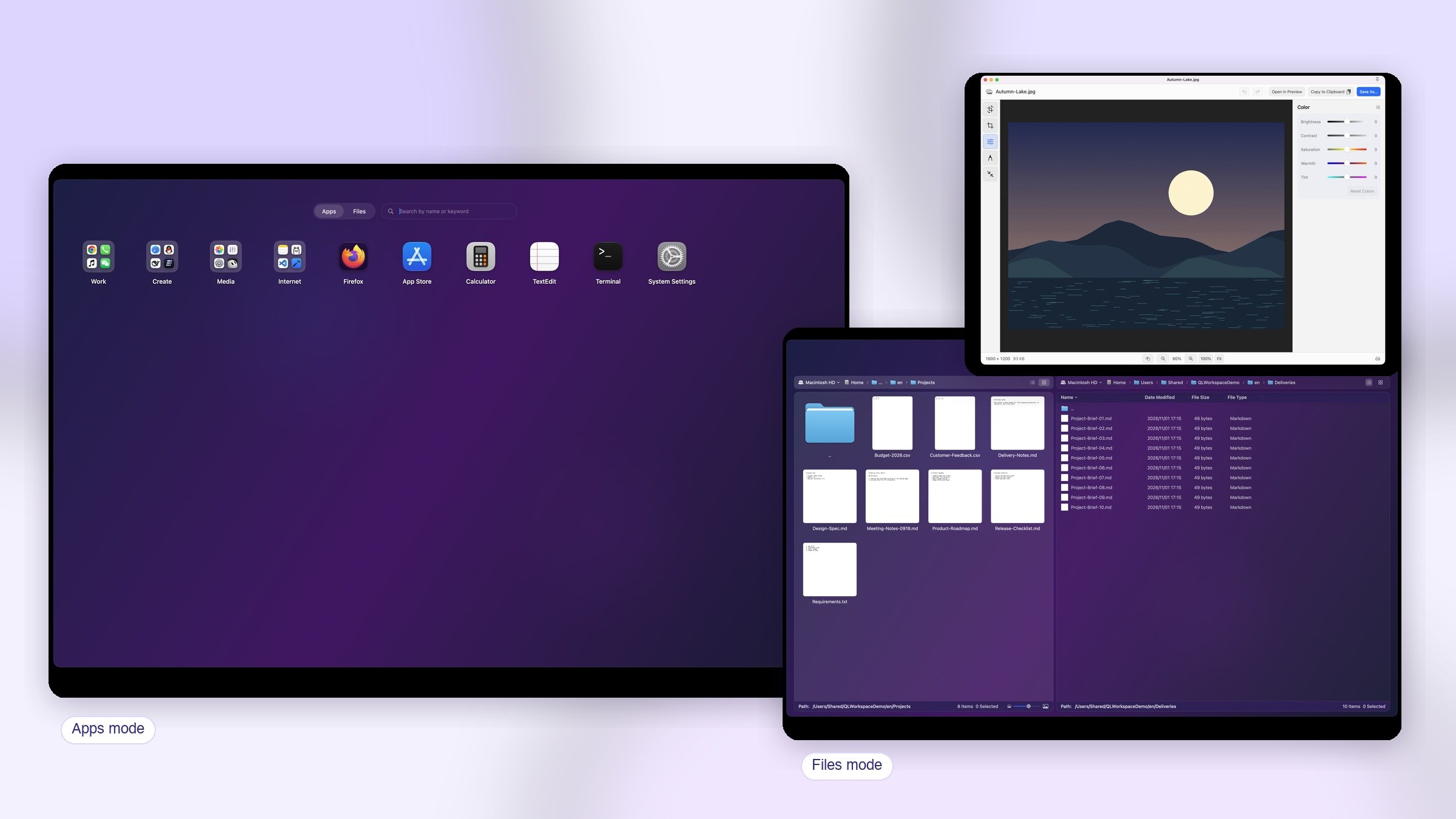
Getting started
Direct edition · Where did the app go after closing the window? How do I quit completely?
Clicking the red close button only hides the launcher. The app keeps running in the menu bar and in the background, and global shortcuts remain active.
To quit completely:
- Choose QuickLight Workspace → Quit Completely from the app menu at the top-left of the screen; or
- Press ⌘Q while the launcher window is active.
If the menu bar icon is hidden, open the main window first, then quit from the app menu. To reopen after closing, click the Dock icon, the menu bar icon, or use your show shortcut.
Direct edition · A newly installed app is missing
QuickLight Workspace scans the standard application folders only: /Applications, ~/Applications, /System/Applications, and their Utilities folders. A newly installed app usually appears within seconds.
If it does not:
- Switch to application mode once, or reopen the launcher;
- Open Settings → Applications → App Index and click Rebuild App Index;
- Make sure the app is in one of those folders, not in a disk image, the Downloads folder, or a custom location;
- If it still does not appear, quit the app completely and open it again.
The launcher only records layout; it never moves, modifies, or deletes the real app.
Function keys & shortcuts
Direct edition · What do F1–F8 do by default?
In file mode, the default function keys are:
- F1: switch to application mode
- F2: Get Info
- F3: Rename
- F4: Copy
- F5: Paste
- F6: Move
- F7: New
- F8: Copy path
Space for preview and ⌘⌫ for delete are fixed and do not use F1–F8.
Function keys act on the focused file pane only; they do not trigger while you are typing in the search field or a rename field.
Direct edition · How do I change F1–F8?
- Open Settings → File Mode → File Browser Shortcuts;
- Click the current key on the right and press the new F1–F8 key;
- Press Esc to cancel, or click Clear Shortcut to remove the custom binding.
Each function key can belong to only one command; duplicates are rejected. After clearing, that command has no function key until you assign one again. Changes are saved immediately; no restart is needed.
Direct edition · F1–F8 do nothing, or change brightness/volume
Check these in order:
- You are in file mode, and the file list or empty area has focus;
- System Settings → Keyboard → Keyboard Shortcuts → Function Keys has Use F1, F2, etc. keys as standard function keys enabled;
- If your keyboard controls brightness/volume by default, hold Fn while pressing F1–F8, or try an external keyboard;
- In Settings → File Mode → File Browser Shortcuts, make sure the command was not cleared or moved to another key;
- Make sure no other app is using the same function key.
Direct edition · Global shortcuts conflict or do not work
Edit them in Settings → General → Shortcuts: show/hide application mode, show/hide file mode, cycle window mode, and open/close quick launch.
If a combination is already used by macOS or another app, Settings shows a conflict; choose another combination with ⌘ / ⌥ / ⌃. If it still does not work, quit the app completely and open it again. Keyboard remapping tools, remote desktop apps, and security software can intercept shortcuts; temporarily disable them to test.
Files & permissions
Direct edition · File mode cannot open a folder or reports a permission error
The first time you open Desktop, Documents, Downloads, an external drive, or a network share, macOS asks for folder access. Allow it once; the app saves a security-scoped bookmark and opens it directly next time.
If you denied it by mistake:
- Open System Settings → Privacy & Security → Files and Folders, find QuickLight Workspace, and enable the relevant category;
- Or return to file mode, open the location menu before the path bar, and choose the folder again.
Protected locations such as Mail, Messages, and Time Machine backups may also require Full Disk Access.
Direct edition · Do I need Full Disk Access?
Most folders — Documents, Downloads, Desktop, and external drives — do not need Full Disk Access. It is only needed for protected locations such as Mail, Messages, other users' home folders, and Time Machine backups:
- Open System Settings → Privacy & Security → Full Disk Access;
- Click +, add QuickLight Workspace, and enable it;
- Quit the app completely and open it again.
Enable it only if you really need those locations, and turn it off when you no longer do.
Direct edition · The photo library does not open, or only some photos are visible
The photo library is controlled by the system Photos permission. On first use, choose Allow Access to All Photos or select specific photos; with limited access, file mode can only show the photos you selected.
To change it: open System Settings → Privacy & Security → Photos, find QuickLight Workspace, and choose full access or change the selected photos.
Image editing always saves a copy and never writes back to the library original.
Direct edition · Showing Finder Info asks to control Finder
Show Finder Info asks Finder to display its Info window, so macOS may prompt QuickLight Workspace wants to control Finder. Choose Allow.
If you denied it, open System Settings → Privacy & Security → Automation and enable Finder under QuickLight Workspace.
Show in Finder only opens a Finder location and usually does not need this permission. QuickLight Workspace does not need Accessibility or Screen Recording permission.
Direct edition · Files are not found
File search matches file names and metadata only; it does not read file contents. Check:
- The scope next to the search field: Current Folder or Current Folder and Subfolders;
- Whether the file is inside a hidden folder (enable hidden files in file mode);
- Network shares or unmounted disks may not be indexed by the system; open that folder directly and search again;
- Try a shorter keyword;
*matches any characters and?matches one character.
Application search supports Chinese characters, full pinyin, and initials; file mode matches file names only and does not offer pinyin search.
AI & privacy
Direct edition · Where is my model API key stored? Is it uploaded?
Your model API key is stored only in the macOS Keychain:
- Service:
com.qlmf.QLLaunch.ai-api-key, one item per provider; - Access level: After first unlock, this device only (
AfterFirstUnlockThisDeviceOnly); - It is never written to layout files, iCloud backups, or exported configuration, and never synced to iCloud Keychain.
At request time the key is used only in local memory and sent as Authorization: Bearer to the provider you chose. By default it does not pass through QuickLight Workspace servers, and full keys are redacted from error messages.
Direct edition · The system keeps asking for Keychain access, or I denied it
The first time you save or read a key, macOS may ask whether QuickLight Workspace can access the Keychain. Choose Always Allow. If you denied it, AI requests cannot read the key.
To fix it:
- Open Keychain Access and search for
com.qlmf.QLLaunch.ai-api-key; - Delete the item for that provider;
- Return to Settings → API Configuration and save the key again;
- Choose Always Allow when macOS asks again.
You can also delete the key in API Configuration and enter it again.
Direct edition · What data does AI organization send?
Before the first AI organization request, QuickLight Workspace shows a confirmation with the number of apps and folders to be sent. Nothing is sent until you click Generate Organization Plan.
The request contains display names, temporary IDs, and the organization scope only — no paths, bundle IDs, website URLs, real identifiers, usage history, or complete layout.
- Smart search sends only your search description, scope, and the current time/time zone;
- AI rename sends only the rename instructions, file/draft names, and kind.
None of them upload file contents, photos, or directory listings. See the Privacy Policy for details.
Direct edition · AI request failed: 401, 403, 404, timeout, or model not found
Check the error type:
- 401/403: the key is invalid, expired, or lacks access to that model;
- 404: the endpoint or model name is wrong;
- 429: rate or quota limit;
- Timeout/network error: check proxy, firewall, and network.
Open Settings → API Configuration and verify the provider, Base URL (usually ending in /v1), model name, and key. Use Fetch Models to test the connection.
If the AI response is incomplete, QuickLight Workspace will not apply organization or rename changes automatically; adjust the request and try again.
Direct edition · How do I configure a custom endpoint or Ollama? Is it safe?
Choose Custom OpenAI-compatible endpoint or Ollama:
- Remote addresses must use HTTPS;
- Local Ollama can use
http://127.0.0.1:11434/v1and does not need a real key; - Enter the Base URL up to
/v1, and use a model name the server actually serves.
A custom service receives your key and request content, so only use addresses you trust. If you use a corporate gateway, proxy, or packet capture tool, make sure the path is trustworthy. The app rejects cross-origin redirects and redacts keys from errors.
Direct edition · The API key is correct, but AI features still ask for a license. Why?
The API key and the membership license are separate: the key connects to your chosen model service, while permission to run AI organization, smart search, and batch rename comes from the membership license.
If the key is saved but a feature says a license is required, open Settings → Membership & License (or Settings → Lifetime VIP for the App Store version), check the sign-in state or restore the purchase, then click Refresh License. If both are valid, troubleshoot the endpoint, model name, and quota as an API error.
Membership & license
Direct edition · What is the difference between the website and App Store license?
- Website version: sign in with your website account; the license is device-bound and issued as a signed license. Use Settings → Membership & License to sign in, refresh, or manage devices.
- App Store version: purchase and restore with your Apple ID; no website account is involved. Use Settings → Lifetime VIP to purchase or click Restore Purchases.
The two licenses are independent and cannot be mixed. When moving to a new Mac, use device transfer for the website version, or restore the purchase with the same Apple ID for the App Store version.
Direct edition · The app still shows no license after purchase — how do I refresh?
After purchasing or moving to a new Mac, open Settings → Membership & License, confirm you are signed in with the website account used for the purchase, and click Refresh License.
If it still shows no license:
- Check whether an old device still holds the license;
- Check the license expiry and your Mac's system time;
- Open License Management to view devices and revoke an old one if needed;
- For the App Store version, confirm the Apple ID and click Restore Purchases.
During network problems, a signed offline license may still work; do not repeatedly sign out.
Direct edition · How do I transfer a lifetime license to a new Mac?
To transfer a website lifetime license:
- Install and open QuickLight Workspace on the new Mac;
- On either Mac, open Settings → Membership & License → License Management to reach the device page in the website member center (or open the member center directly);
- Find the old device and click Revoke / Transfer License. This consumes one transfer, and the old device's license is invalidated immediately;
- Sign in with the same account on the new Mac and click Refresh License to activate it.
Back up your layout before transferring. The AI key is not transferred with the license; enter it again on the new Mac.
Direct edition · What if I have used all my device transfers?
When the transfer quota is used up, the page shows 0 remaining and self-service revocation is disabled.
Contact support through the FAQ or h1393505@gmail.com with your purchase account, order number, and device details. We will verify and handle it manually.
Do not repeatedly click revoke or purchase again. If a repair or logic-board replacement changed the device identity, use the same manual transfer process.
Direct edition · How does offline activation work? What if the device key is lost?
For offline or air-gapped deployment, open Settings → Membership & License and use Export Offline Activation Request. Send the generated file to support; when you receive the signed .qlmf-license, click Import Offline License.
An offline license is still bound to this Mac. If the device key is lost, the system is reinstalled, or the machine is damaged, the old license cannot be restored directly; contact support. Only import a license file from a trusted source.
Quick troubleshooting
Direct edition · AI organization failed or returned incomplete content
If AI organization fails, your layout is not changed.
Check the endpoint, model, key, and network in Settings → API Configuration. If the response is incomplete, the app count does not match, or the format is invalid, the app refuses to apply it. You can:
- Reduce the number of apps in one request;
- Narrow the scope in Applications → AI Organization and try again;
- Cancel the current preview and generate a new plan.
To restore the previous layout, use the most recent backup in Applications → Layout Backup & Restore.
Direct edition · Purchase was not restored
First confirm the purchase channel:
- App Store version: sign in with the Apple ID used for the purchase, then click Settings → Lifetime VIP → Restore Purchases;
- Website version: sign in with the website account used for the purchase, then click Refresh License in Settings → Membership & License.
If it still fails, check the network, system time, and device binding. For the website version, view the device list in License Management. Do not purchase again; contact support with your order number for order issues.
Direct edition · Batch rename cannot be confirmed or fails midway
Read the red message in the window first:
- Duplicate names: rename to resolve the conflict;
- No permission: check folder access;
- File in use or moved: close the app using it and refresh;
- Extension change: the warning is expected; confirm the file still opens correctly.
If the operation was interrupted, open History, review the restore preview, then confirm the restore. Do not move, overwrite, or rename those files before restoring.
Direct edition · Image editing fails to save, or will the library original be changed?
Image editing always saves a copy: images from file mode are saved where you choose, and photos from the library are never written back to the original.
If saving fails, check:
- Write permission for the destination folder;
- Free disk space;
- Whether the file name already exists;
- Whether the format is supported.
For more advanced retouching, click Open in Preview to continue in Apple Preview.
Direct edition · How do I migrate layouts and settings to a new Mac?
Layouts, folders, website shortcuts, themes, shortcuts, and file browser settings can move through Settings → General → Cloud Backup (basic backup and restore are free). You can also use Applications → Layout Backup & Restore for local backups.
AI API keys and website device licenses are not included in cloud backups: enter the key again and transfer the license on the new Mac. Your files are not backed up; use Migration Assistant or an external drive.
No matching questions. Try another keyword or ask us below.
Still need help?
Sign in to send a question, bug report or feature request. We reply in Membership → Issue feedback.